Sending money is part of everyday life. Sometimes it’s planned, sometimes it’s urgent, and often it happens quickly in the middle of everything else.
Over time, those transfers add up.
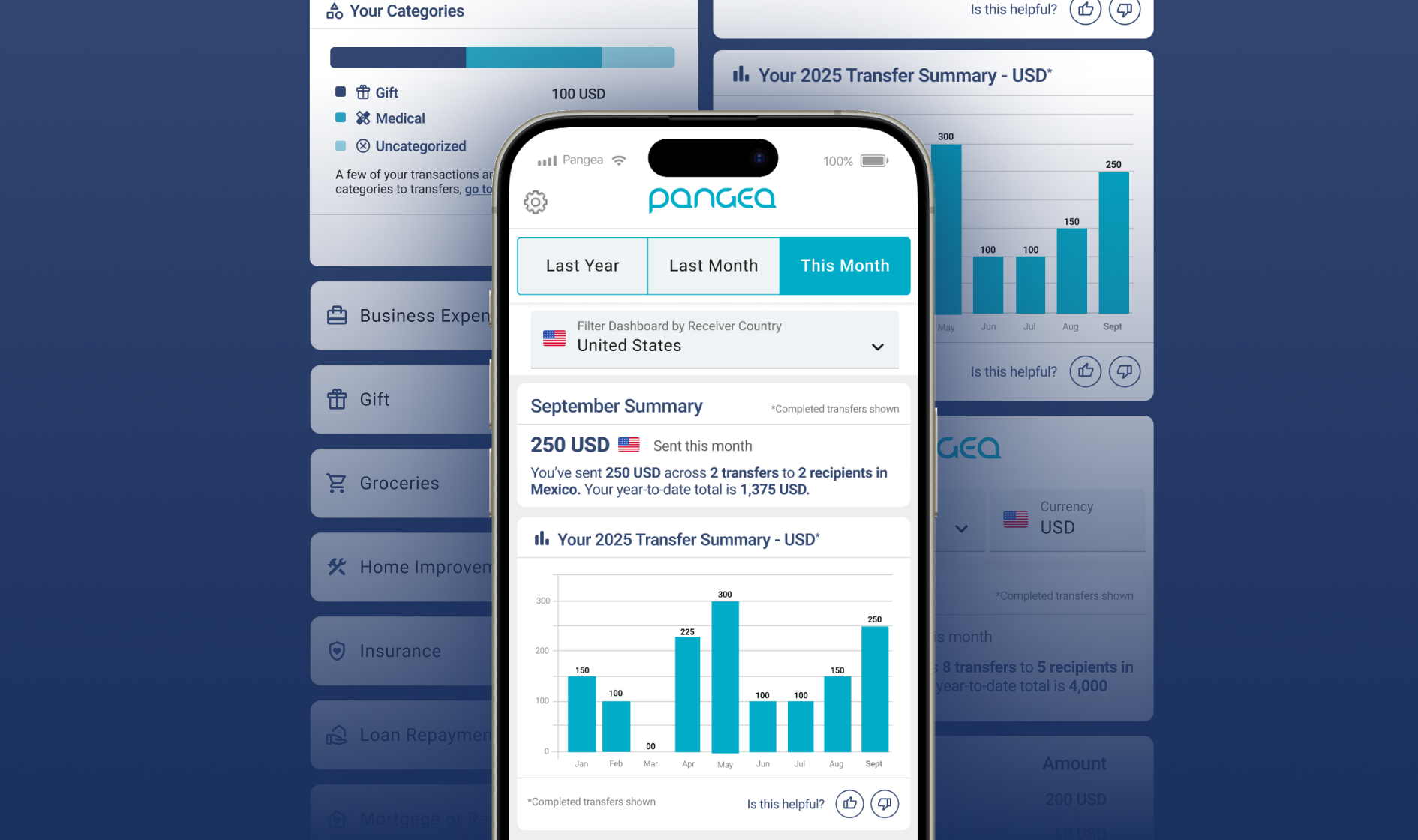
That’s why we’re introducing the Pangea Dashboard, a new feature that helps you clearly understand how your transfers add up over time.
What is the Pangea Dashboard?
The Pangea Dashboard is a feature in your Pangea app that helps you understand your money transfers over time. It automatically brings together your completed transfers with clear summaries, so you can see how your sending adds up.
As you use it, the Dashboard becomes more helpful when you add context — like categories and relationships — giving you a clearer picture of your sending habits.
In your Dashboard, you can see:
- Your most recent transfers
- How your sending adds up across the year
- Your top recipients
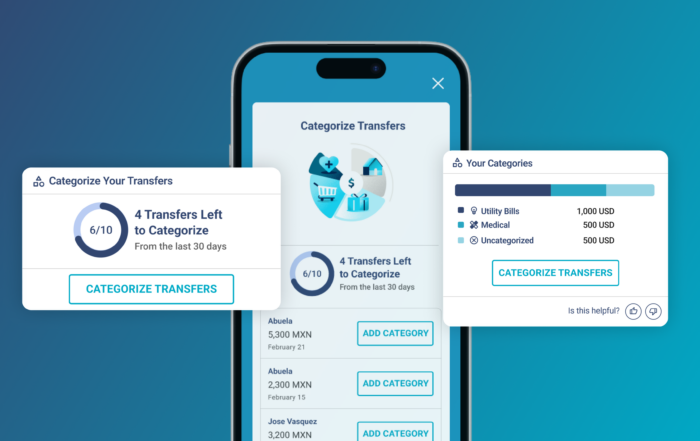
- Transfers grouped by category
- Transfers grouped by relationship
- Your Year In Review
Everything is shown in one place, making it easier to understand the bigger picture.
How The Pangea Dashboard Works?
Using the Dashboard is simple and fits naturally into how you already manage your sending.
Step 1: Send your transfer
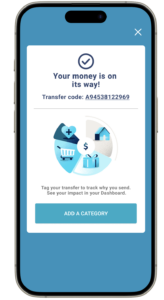
Once your transfer is complete, you’ll see a confirmation that your money is on its way. Your Dashboard updates automatically after the transfer is completed.
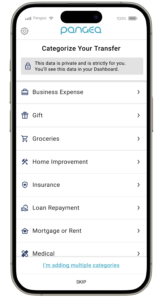
Step 2: Add a category
After sending, you can optionally select a category to give your Dashboard more context. This helps your summaries and charts show more clearly what your money was used for.
If a transfer supports more than one purpose, you can select multiple categories. Categorizing is optional, but it helps your Dashboard better reflect how you use your money over time.
Step 3: Add a relationship
Next, you’ll see the option to add a relationship to show who you’re supporting.
Examples include:
- Mom
- Dad
- Grandma
- Spouse
- Brother
- Other loved ones
Adding a relationship allows your Dashboard to show clear totals by person, so you can quickly see how much support you’ve provided to each loved one.
You’ll be prompted to choose a relationship right after sending, when it’s easiest to do. Once you add a relationship for a receiver, it can’t be edited, and you won’t be asked to add it again for that person.
Step 4: See your Dashboard come together
Once your transfer is complete, your Dashboard updates automatically.
As you add categories and relationships, your summaries and charts become clearer. You’ll start to see how your transfers come together by purpose and by the people you support — turning individual transfers into useful learnings.
Where to find your Dashboard
You can access your Dashboard anytime in your Pangea account.
- In the Pangea app: Tap Dashboard in the bottom menu. It’s the last icon.
- On the web: Log in to your Pangea account and open Dashboard from the main navigation.
No setup required.
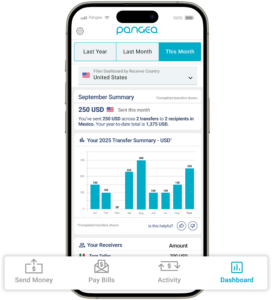
What you’ll see in your Dashboard
Your Dashboard gives you a clear view of your recent activity and your overall sending patterns — turning individual transfers into something you can easily understand.
You’ll be able to see:
- Your most recent transfers at a glance
- How your sending adds up over time
- Who you’ve supported across your transfers
- Helpful context around what your money helped cover
Together, these views give you a clearer picture of your sending and how your support comes together over time.
View Your Transfers by Time
The Pangea Dashboard gives you multiple time-based views so you can understand your sending at different moments.
You can view:
- This month: A real-time view of your completed transfers so far
- Last month: A finalized summary of your sending from the previous month
- Last year (Year In Review): A yearly snapshot that shows how your transfers added up over time
These views work together to help you move easily between short-term activity and long-term patterns, all within the same Dashboard.
Your Information Is Protected
Any details you add — like categories or relationships — are for your personal use. They help your Dashboard organize your transfers in a way that makes sense to you.
Adding this information is optional. It doesn’t change how your transfer is sent, how fast it arrives, or how much it costs. It’s simply there to help you better understand your own sending activity over time.
You stay in control of what you add, and your Dashboard reflects only what you choose to include.
Learn more about how Pangea protects your information in our Privacy Policy.
Your Transfers, Organized Your Way
The Pangea Dashboard brings your transfers together in one clear view — so you can see who you support, what your money helps cover, and how it all adds up over time.
Adding details like categories or relationships is optional and always for your personal reference. Use as much or as little as you like — your Dashboard reflects what matters to you.
Log in to your Pangea account and visit your Dashboard to see your transfers in one place.
Frequently Asked Questions (FAQs)
– Do I need to categorize transfers to use the Dashboard?
No. The Dashboard will still show your transfer totals and history even if you don’t categorize. Adding categories simply gives you more detailed insights.
– Will using the Dashboard affect my transfers or fees?
No. The Dashboard is just for your personal tracking — it doesn’t affect your transfers, delivery time, or fees.
– Can I change the currency for my Dashboard?
Yes. You’ll be able to view charts and breakdowns in either USD or your receiver’s currency.
– How often is the Dashboard tab updated?
Your Dashboard updates automatically once a transfer is completed—when the money has been successfully received or picked up by your receiver.
You’ll see:
- Real-time updates for completed transfers
- A refreshed view of the current month
- A full summary of the previous month available on the first day of each month
- A summary of last year’s activity, so you can review your transfers from the previous calendar year
This helps you easily track your sending history and stay on top of your finances over time.
– Why am I asked to add a category?
After sending, you will see the option to add a category. This step is optional but helps your Dashboard better reflect how you have supported your loved ones.
DISCLAIMER – This content is for informational purposes only. Pangea and its affiliates do not provide legal, financial, investment or tax advice.